# Over-the-Air Updates (OTA)
nRF Cloud provides secure and scalable updates for all IoT devices ([MCU](/docs/mcu/releases-integration-guide.md), [Android](/docs/android/android-releases-integration-guide), [Linux](/docs/linux/ota), or a combination of them). With [real-time monitoring](/docs/platform/charts-and-cards.md) and controlled releases, you can debug and ship new releases confidently.
tip
Memfault uses a globally distributed CDN for low latency and high speed downloads regardless of geolocation. It supports features such as HTTP/2, Brotli and GZip, and byte range requests, among others.
## Introduction and Concepts[](#introduction-and-concepts "Direct link to Introduction and Concepts")
[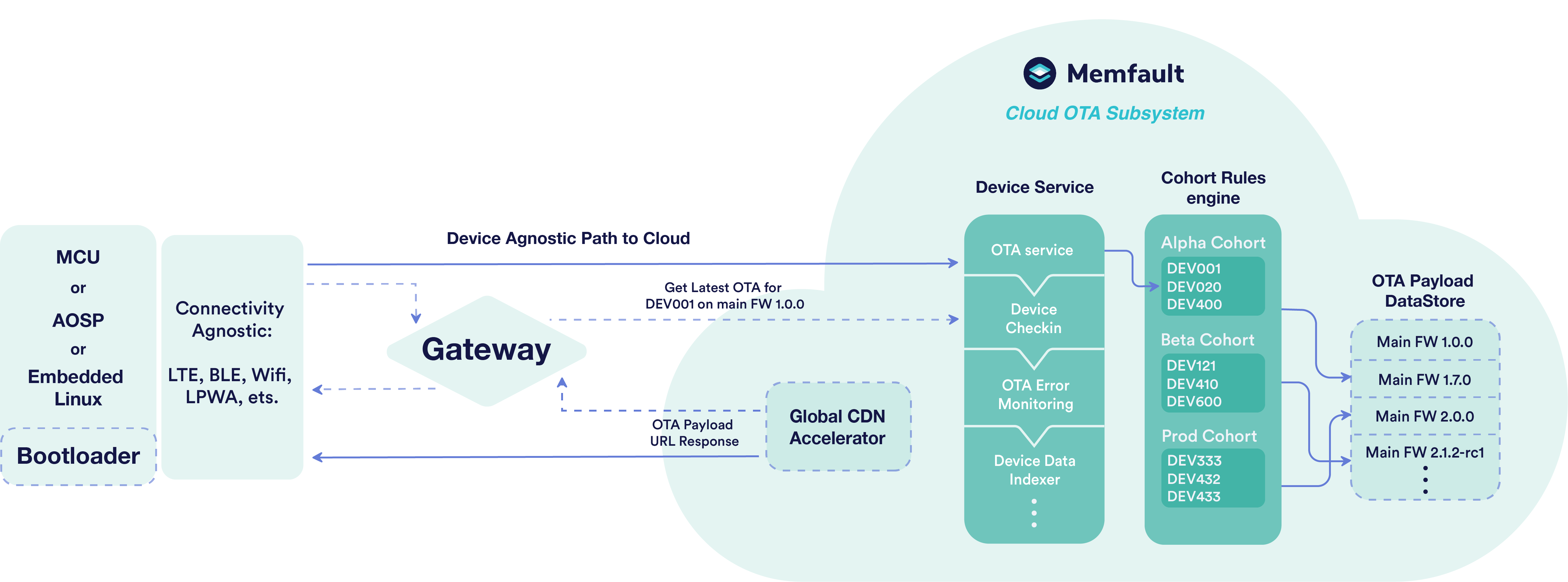](/img/docs/platform/ota/memfault-ota-cloud-subsystem.png)
To deliver OTA Updates:
* nRF Cloud
users have different ways to configure which OTA payloads to distribute to which devices.
* Each device polls the
nRF Cloud
[Device OTA Endpoint](#device-ota-endpoint).
* nRF Cloud
uses [various inputs](#updating-behavior), predominantly the current Software Version of the device, to decide what to return.
* Each device may receive information about a new available payload.
* Ultimately, this process is meant to replace or update the software running on a device.
Read about related nRF Cloud terminology to better understand the contents of this document:
* [Software Versions and Hardware Versions](/docs/platform/software-version-hardware-version.md).
* [Version Schemes](/docs/platform/software-version-hardware-version.md#version-schemes) to understand Software Version ordering.
* Generic [nRF Cloud](/docs/platform/terminology.md)
[ terminology documentation](/docs/platform/terminology.md).
tip
nRF Cloud always recommends signing OTA artifacts, to protect devices from installing counterfeit/invalid firmware. Securing OTA artifacts varies by platform.
* Android
* Linux
* MCU
AOSP builds are always signed as [part of the image creation process](https://source.android.com/docs/core/ota/sign_builds).
SWUpdate images for Linux OTA should [always be signed](https://sbabic.github.io/swupdate/signed_images.html).
Platforms using [MCUBoot](https://docs.mcuboot.com/imgtool.html) will have image verification support (including Zephyr-based projects, which has [built-in support](https://docs.mcuboot.com/readme-zephyr.html)).
Other platforms may have built-in support for signing and verifying OTA images, or you may need to [implement this yourself](https://interrupt.memfault.com/blog/secure-firmware-updates-with-code-signing).
## Release Types[](#release-types "Direct link to Release Types")
nRF Cloud provides two Release entities to solve the challenges of over-the-air updates: Full Releases and Delta Releases.
### Full Releases[](#full-releases "Direct link to Full Releases")
Full Releases provide a way to upgrade device Software Versions regardless of the version the device is currently on.
If we define the version of the most current Release as `2.0` and every version lower than `2.0` as `*`, we can describe the behavior of a Full Release as: `[*→2.0]`.
See the [updating behavior](#updating-behavior) section for more details.
#### Must-pass-through Full Releases[](#must-pass-through-full-releases "Direct link to Must-pass-through Full Releases")
Full Releases can be marked as *must-pass-through*, or MPT for short. When an MPT Release is activated, a device on a lower version will be forced to "pass through" this Release before an update is allowed to a Full Release with a version greater than that of the MPT Release. Typically this setting is not needed.
### Delta Releases[](#delta-releases "Direct link to Delta Releases")
A Delta Release describes a transition from exactly one From Version to exactly one To Version. The behavior can be described as: `[1.0→2.0]`.
Note that Delta Releases are referred to as ["incremental updates" in Android documentation](https://source.android.com/devices/tech/ota/tools#incremental-updates), or "differential updates" in other places.
A Delta Release is only applied when the device's current version matches the Release's From Version.
Delta Releases allow for more fine-grained control over the update paths of devices. Additionally, Delta Releases generally contain smaller payloads, reducing required bandwidth and costs associated with rolling out updates.
See the [updating behavior](#updating-behavior) section for more details on Delta Releases.
Another good place to learn more about delta updates for MCU-based devices in our Interrupt blog post [Saving bandwidth with delta firmware updates](https://interrupt.memfault.com/blog/ota-delta-updates).
nRF Cloud recommends that the device support both Delta and Full OTA, in the case where a Delta payload is not practical.
Due the nature of pre-computed Delta payloads, each release can generate `n` Delta Releases:
| Release Version | Delta Releases |
| --------------- | --------------------------------------------- |
| 1.0.0 | 1.0.0-1.0.1 |
| 1.0.1 | 1.0.0-1.0.2
1.0.1-1.0.2 |
| 1.0.2 | 1.0.0-1.0.3
1.0.1-1.0.3
1.0.2-1.0.3 |
| ... | ... |
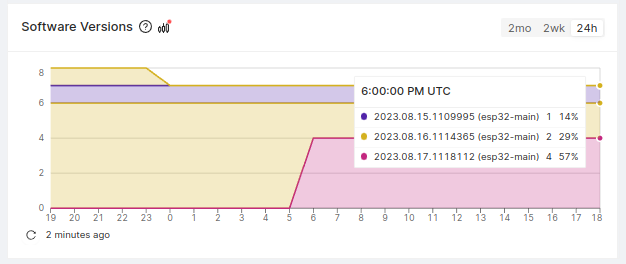
If it's necessary (or desirable) to limit the number of Delta Releases, you can use data from nRF Cloud on the number of devices on each release to determine which Delta update paths should be generated:
[](/img/docs/mcu/cohort-version-distribution.png)
For example, only generate Delta Releases for the 5 releases with the most devices, and apply a Full Release for all devices on less popular releases.
## Activating a Release[](#activating-a-release "Direct link to Activating a Release")
You can activate a Release for a Cohort of your choice. While Releases are shared between all Cohorts, activating them happens on a per-Cohort basis.
When activating a Release for a Cohort, you can choose between two behaviors:
### Normal Activation of a Release[](#normal-activation-of-a-release "Direct link to Normal Activation of a Release")
Releases activated *normally* are available immediately to all devices in a Cohort.
### Staged Rollout of a Release[](#staged-rollout-of-a-release "Direct link to Staged Rollout of a Release")
Staged-rollout Release Activations can be used to make a Release available to a Cohort incrementally.
When a staged-rollout Release Activation is created for a Cohort, a random subset of its devices (amounting to the selected rollout percentage) will be marked as *staged* in this Cohort. Staged-rollout release activations are only applicable to devices that are *staged* in the Cohort.
info
The number of devices marked as *staged* is calculated only when this percentage is configured, and not continuously adjusted. If devices are added to or removed from a Cohort, the actual percentage of devices marked *staged* may differ from the percentage previously configured.
#### Manual Staging of Devices[](#manual-staging-of-devices "Direct link to Manual Staging of Devices")
If you need more control over which devices are *staged* you can change the staged status of devices manually on its details page.
Alternatively, you can use the **Bulk Action** feature to stage multiple devices:
1. navigate to **Devices**
1. filter by the **Current Cohort** (strongly recommended)
2. click on **Bulk Action** > **Change Staged**
info
When using a bulk action, you probably want to use the **Limit** feature to avoid staging all devices in the Cohort. To make the limit more intuitive, it's recommended to restrict the filters to devices that are not already staged (i.e. **Staged** is set to **No**).
Additionally, you'll be able to set the order in which devices are staged. For example, you might want to prefer devices that have been seen more recently.
### Best Practices When Activating Releases[](#best-practices-when-activating-releases "Direct link to Best Practices When Activating Releases")
nRF Cloud enables risk mitigation through different mechanisms.
#### Monitoring the Effects of Releases[](#monitoring-the-effects-of-releases "Direct link to Monitoring the Effects of Releases")
As part of your OTA management workflow, open the Release and use the **Release Health** tab to compare Device Vitals before and after the update. The tab also shows how many target devices are on the Release's Software Version.
The **Target Devices** tab separates devices that are on the Release's Software Version from those that are not.
For additional project-specific monitoring, set up [Metric and Issue Charts](/docs/platform/charts-and-cards.md#metric-charts) to monitor the health of your fleet. You can use [Comparison Mode](/docs/platform/dashboards.md#comparison-mode) to see how devices in a different Cohort or in a newer Software Version are doing relative to other devices.
#### Activating Releases in a test Cohort first[](#activating-releases-in-a-test-cohort-first "Direct link to Activating Releases in a test Cohort first")
Since Releases are shared among all Cohorts, you can use the Release activation mechanism to test a Release in (for example) a `beta` Cohort before activating the same Release in a `production` Cohort. Once you've gained confidence through [monitoring](#monitoring-the-effects-of-releases) that the software in a new Release is working as expected, you can activate the Release for a bigger Cohort.
#### Using staged-rollout Releases[](#using-staged-rollout-releases "Direct link to Using staged-rollout Releases")
Releases activated using a [staged rollout](#staged-rollout-of-a-release) can be used to limit the amount of devices that will download a specific Release, reducing the risk of shipping bugs to a greater portion of the fleet. Once you've gained confidence through [monitoring](#monitoring-the-effects-of-releases) that the software in a new staged-rollout Release is working as expected, you can increase its rollout percentage.
## Deleting a Release[](#deleting-a-release "Direct link to Deleting a Release")
Releases can be deleted when they are no longer needed. Before a Release is deleted, all of its Activations must be *aborted* first.
Follow the steps below to abort any remaining Activations and delete the Release:
1. Open the Release from **OTA Releases**.
2. In **Activation by Cohort**, for any activation that is not already marked *aborted*, click **Abort** and confirm in the dialog.
3. Once every activation is *aborted*, click **Delete** in the top-right of the Release page and proceed through the confirmation.
If any activation is not *aborted*, the delete action fails with an error asking you to remove its deployments from **Activation by Cohort** first.
## Release Overrides[](#release-overrides "Direct link to Release Overrides")
Sometimes you might want to send a Release just to one specific Device.
In that case you can override the Release that a Device will receive by setting the **Release Override** on the Device details page to the desired Release.
warning
An override bypasses many protections that are in place to ensure that devices are updated in a safe and controlled manner. Use this feature with caution. The only two protections left in place is that the device will not receive:
* the same Release it is already on,
* a Release without a payload for the device's hardware version.
Other protections are bypassed, such as:
* Downgrades are possible.
* Other active Releases are ignored, which in turn means:
* Any Must-pass-through (MPT) Releases are ignored and thus bypassed.
* Any Delta Releases are ignored and thus bypassed.
info
There is no *bulk action* to set Release overrides. If you want multiple Devices to receive the same Release, you should use cohorts.
warning
The Version Matrix will not reflect the **Release Override** correctly.
## Updating Behavior[](#updating-behavior "Direct link to Updating Behavior")
nRF Cloud needs to decide which OTA payload to send when a device queries the [Device OTA Endpoint](#device-ota-endpoint). This section covers the behavior of our backend when receiving one such query.
In this section, we'll sometimes refer to one Software Version being higher or lower than another. To understand how nRF Cloud resolves Software Version ordering, refer to the [Version Schemes](/docs/platform/software-version-hardware-version.md#version-schemes) documentation section.
info
To understand how nRF Cloud selects an OTA payload for a specific device, use the [**Explain** feature](#debugging-your-configuration) in the device details view.
### Applicability of an OTA Release[](#applicability-of-an-ota-release "Direct link to Applicability of an OTA Release")
Along with the query to the [Device OTA Endpoint](#device-ota-endpoint), a device sends:
* the Device ID (often the device serial number) to determine its Cohort,
* the [Software Type](/docs/platform/terminology.md) to determine the set of Releases against which to apply these rules,
* its current [Software Version](/docs/platform/terminology.md),
* device-specific attributes such as [Hardware Version](/docs/platform/terminology.md).
A Release must be [active](#activating-a-release) for the Cohort a device is in to be applicable.
To determine if an active Release is applicable to a device, its payload attributes are tested against the parameters sent by the device. If they don't match, a Release is considered to be incompatible and treated as if it did not exist. Any existing device in a given Cohort or new device that joins a Cohort (incl. devices first activated and auto-joining the default Cohort) will be evaluated against the current set of active releases in the Cohort and receive updates accordingly.
An Release activated as a [staged-rollout](#staged-rollout-of-a-release) will only be applicable to the *staged* portion of the Cohort it targets. In other words, if the device is not *staged* in its Cohort, such Releases will not be applicable.
### Choosing Among Multiple Applicable OTA Releases[](#choosing-among-multiple-applicable-ota-releases "Direct link to Choosing Among Multiple Applicable OTA Releases")
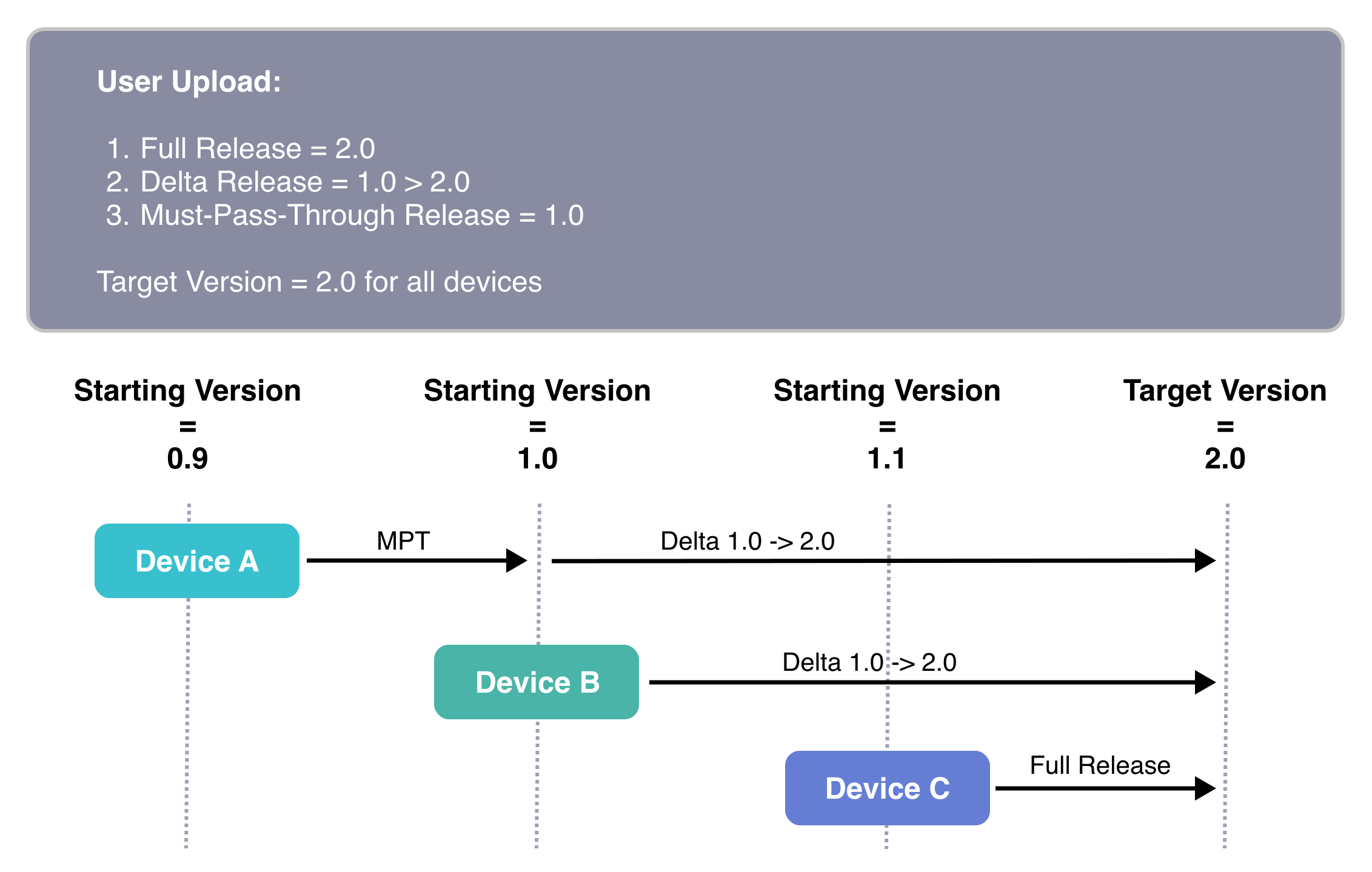
If a device has multiple possible update paths, the following rules of precedence apply to all active Releases per Cohort to determine which release is selected:
1. Use a Delta Release whose From Version matches the current version of the device.
2. Otherwise, use a must-pass-through (MPT) Release with the lowest Target Version that's greater than the current version of the device.
3. Otherwise, use a Full Release with the highest To Version greater than the current version of the device.
important
The precedence can be roughly summarized as: **Delta Release** > **MPT Release** > **Full Release**.
Due to this precedence, devices can "bypass" must-pass-through Releases via a Delta Release. Consequently, a Delta Release must include all information to get from version `A→B`.
This is especially useful for defining upgrade paths from factory versions to the latest major version (or similar).
An example:
[](/img/docs/platform/ota-example.svg)
### Allowing Downgrades[](#allowing-downgrades "Direct link to Allowing Downgrades")
For Full Releases, downgrades are disallowed by default. This is to prevent a device from downgrading to a version that is older than the one it is currently running, which may cause issues.
But there are times when a device or set of devices do need to be downgraded to a previous OTA Release. There are two ways to accomplish this. The first one is to "downgrade by upgrading" and the second is to use the **Disable Version Checking** feature of nRF Cloud Cohorts.
Let's work through an example, where a device is running Release 1.0.1 but needs to be downgraded to the OTA payload served in Release 1.0.0. Aborting the activation of Release 1.0.1 does not make 1.0.0 the latest Release for devices, as this would potentially cause a downgrade situation.
#### Downgrading by Upgrading[](#downgrading-by-upgrading "Direct link to Downgrading by Upgrading")
The recommended way to downgrade devices is to rebuild the old OTA payload exactly as it was, but also update the version that is used with the OTA image and when creating the Release in nRF Cloud.
Following our example, an engineer would check out the 1.0.0 codebase, update the version "1.0.0" to "1.0.2", and build the OTA image. They would then upload this payload under a "1.0.2" Release, and Activate the Release.
With this in place, device will check in and report that they are on 1.0.1, be served the 1.0.2 OTA, and install it. Success!
#### Disabling Version Checking on a Cohort[](#disabling-version-checking-on-a-cohort "Direct link to Disabling Version Checking on a Cohort")
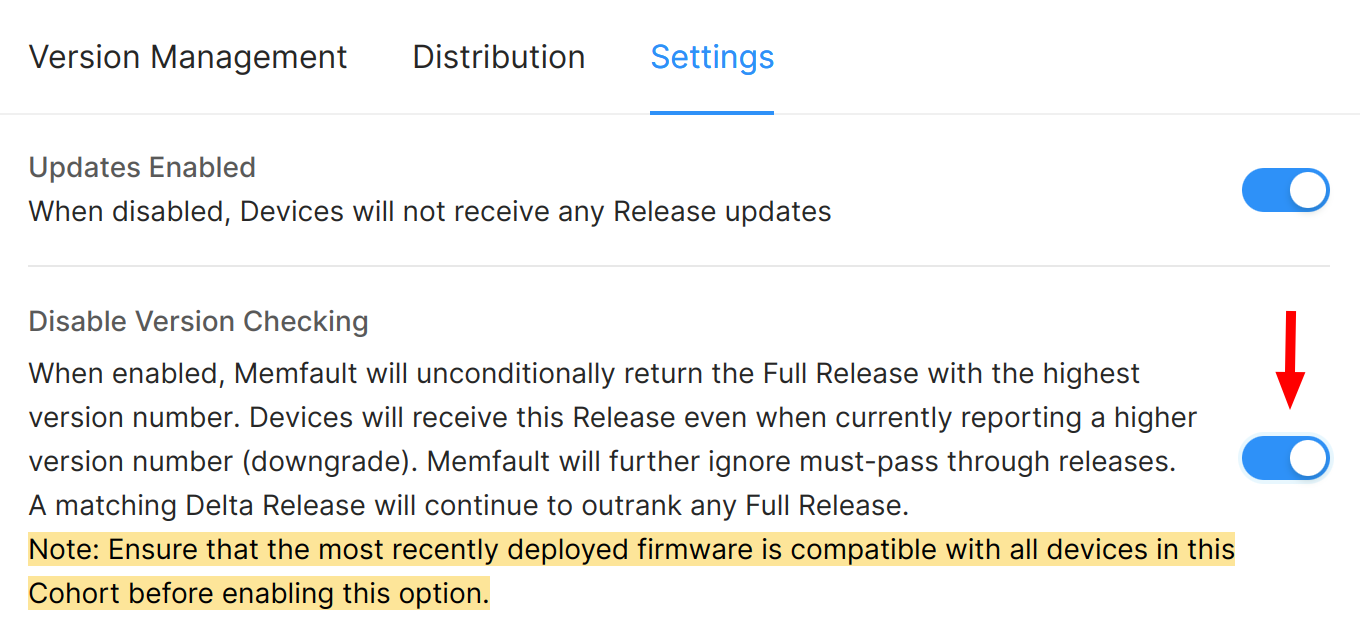
The other way to downgrade a set of devices is to use the **Disable Version Checking** feature. This bypasses the built-in protection in nRF Cloud that prevents returning version 1.0.0 when a device reports that it is already running 1.0.1. Even though nRF Cloud will return version 1.0.0, the underlying operating system might still reject the OTA payload as a downgrade.
The steps that are typically taken to accomplish this are:
* Move devices that need to be downgraded from 1.0.1 to 1.0.0 to a new Cohort.
* Deploy 1.0.0 to this new Cohort.
* Enable the setting **Disable Version Checking**.
[](/img/docs/platform/ota/cohort-version-checking-disabled.png)
Devices in this new Cohort that report that they are running 1.0.1 will now be given the 1.0.0 Release.
Note that the system installing this Release must still be capable of performing this downgrade. It can potentially be a dangerous operation as many persistent storage systems are not both backward and forward compatible.
info
For Delta Releases, downgrades are currently not supported.
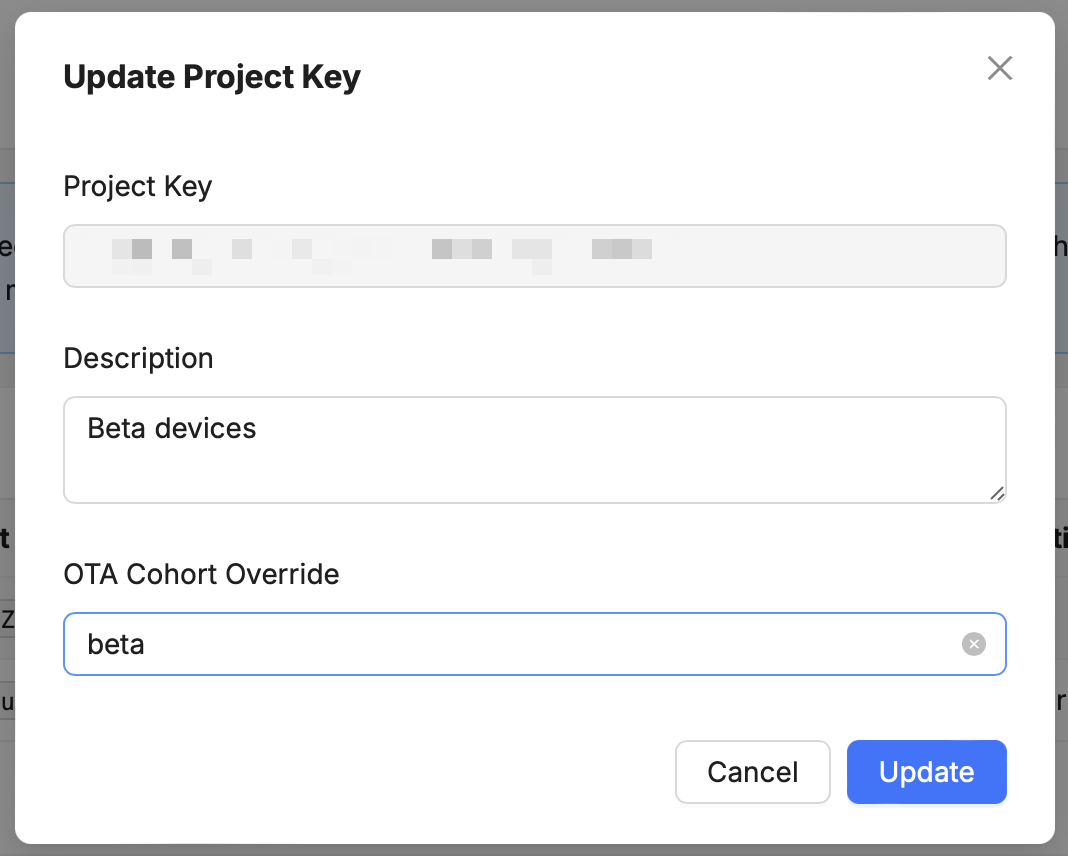
### Overriding the effective Cohort for a specific Project Key[](#cohort-override "Direct link to Overriding the effective Cohort for a specific Project Key")
You can specify an OTA Cohort Override for a specific Project Key in the [Project Key settings](https://app.memfault.com/organizations/-/projects/-/settings/data-routes)
Some potential use cases for this feature are:
* Configuring a different Project Key for devices enrolled in a beta program. By setting a Cohort override on the default, non-beta Project Key, you can ensure that reset devices will receive stable releases regardless of the stored device Cohort.
* Downloading recovery firmware using a different Project Key
* Configuring a different Project Key when a device boots up in recovery mode
Note that this setting only affects OTA update behaviour, and has no effect on the device's stored Cohort at this time.
[](/img/docs/platform/ota/cohort-override.png)
important
If a device was previously marked as *staged* in its actual Cohort as part of "[configuring a staged rollout](#staged-rollout-of-a-release)", it will still be marked as such when using an OTA Cohort override. Take note that it would have access to staged releases in the overriding Cohort as well.
## Managing OTA Updates with nRF Cloud[](#managing-ota-updates-with-memfault "Direct link to managing-ota-updates-with-memfault")
The nRF Cloud application contains OTA-related features in several of its views.
### OTA Releases[](#ota-releases "Direct link to OTA Releases")
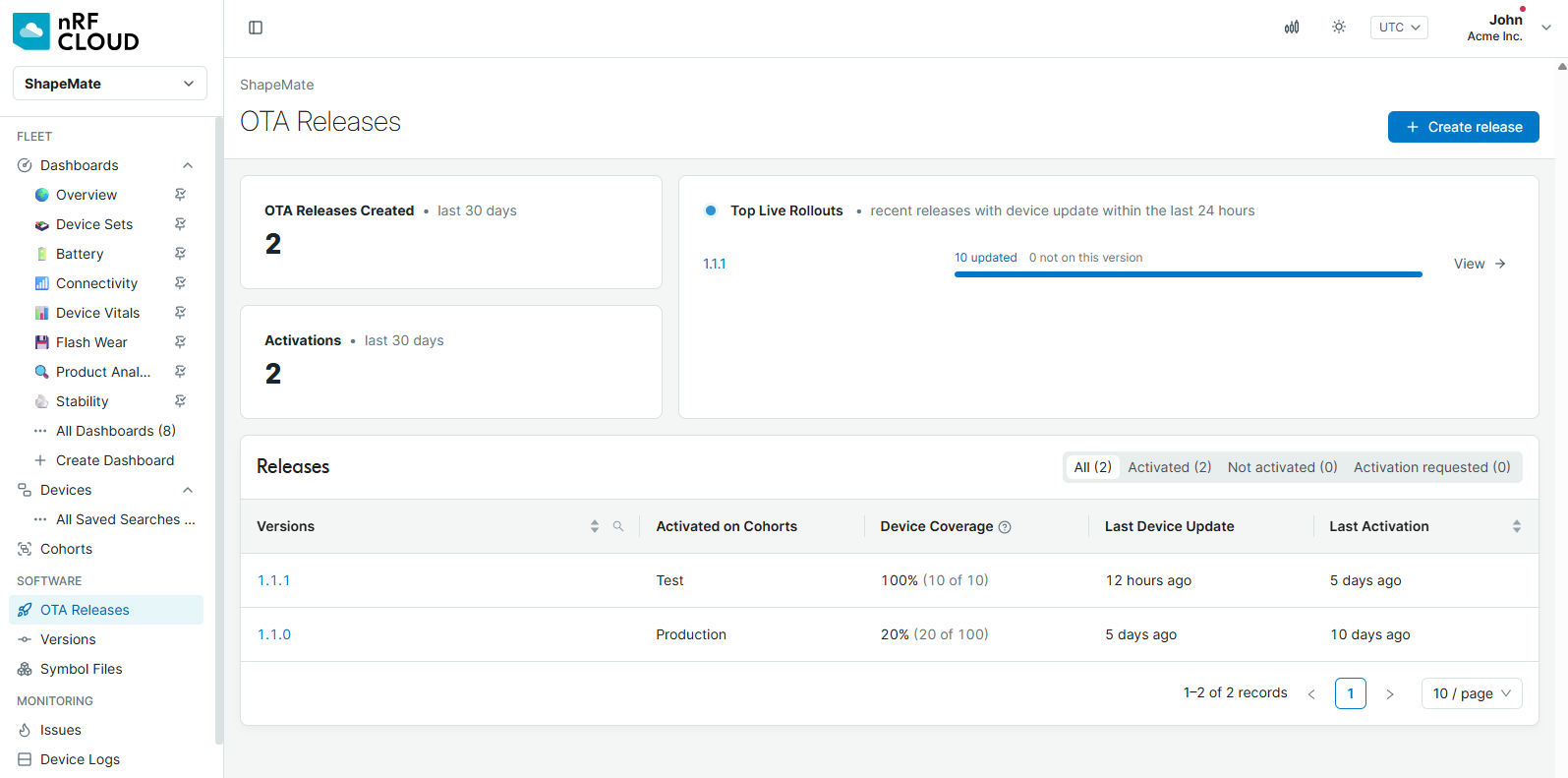
The [**OTA Releases**](https://app.memfault.com/organizations/-/projects/-/releases "Link to your Project on the Memfault Web App.") section of the nRF Cloud application can be accessed from the main menu on the left side. The page provides an overview of recent OTA activity and a unified list of Full and Delta Releases.
The overview includes:
* the number of OTA Releases created and Activations performed in the last 30 days
* **Top Live Rollouts**, showing Releases with device updates in the last 24 hours
* rollout progress based on the number of devices already reporting the target Software Version
The **Releases** table can be filtered by **All**, **Activated**, **Not activated yet**, or **Activation requested**. For each Release, it shows the Cohorts on which it is activated, current Device Coverage, the last device update, and the last Activation. Delta Releases and must-pass-through Full Releases are identified with labels in the Versions column. [Figure 1](#figure-6) shows the OTA Releases dashboard.
#### [](#figure-6 "Direct link to figure-6")
[](/img/docs/platform/ota/ota-releases-dashboard.nrfcloud.png)
Figure 1: OTA Releases dashboard with summary cards, live rollouts, and the releases table.
Let's take a look at how to create Releases using the nRF Cloud application.
important
Please note that the Release version you choose is expected to match the Software Version a device will report once it has installed the OTA payload for this Release.
caution
If you're on Android, we recommend following the [Android-specific OTA guide](/docs/android/android-releases-integration-guide) in order to create Releases.
#### Creating a Full Release[](#creating-a-full-release "Direct link to Creating a Full Release")
To create a Full Release, click **Create release** in the top-right of the **OTA Releases** view. Select the **Full release** tab in the dialog. Among other information, you'll be prompted for a version and whether the Release is a must-pass-through (MPT) Release.
#### Creating a Delta Release[](#creating-a-delta-release "Direct link to Creating a Delta Release")
To create a Delta Release, click **Create release** and select the **Delta release** tab in the dialog. Among other information, you'll be prompted for a From Version and a To Version.
#### Adding an OTA payload to a Release[](#adding-an-ota-payload-to-a-release "Direct link to Adding an OTA payload to a Release")
Once you've created a Release, you'll be redirected to its **Activation** tab. Click **Add OTA payload** to upload the first payload. After a payload has been uploaded, you can create an Activation from the same tab.
Alongside the actual payload file, you'll be prompted for different inputs that a device querying the [Device OTA Endpoint](#device-ota-endpoint) must match for this Release to be applicable to it.
caution
If you're on Android, you'll need to follow the [Android-specific OTA guide](/docs/android/android-releases-integration-guide) to upload an OTA payload, since it can only be done using the [Memfault CLI](/docs/ci/install-memfault-cli.md).
See the [updating behavior](#updating-behavior) section for more details.
### Release Details[](#release-details "Direct link to Release Details")
Select a Release from the [OTA Releases](https://app.memfault.com/organizations/-/projects/-/releases "Link to your Project on the Memfault Web App.") dashboard to open its detail view. The summary shows the first Activation, Cohort, creation time, and whether it is a must-pass-through Release. Select **Show more** for additional details, including the last Activation and release notes.
The detail view is divided into three tabs:
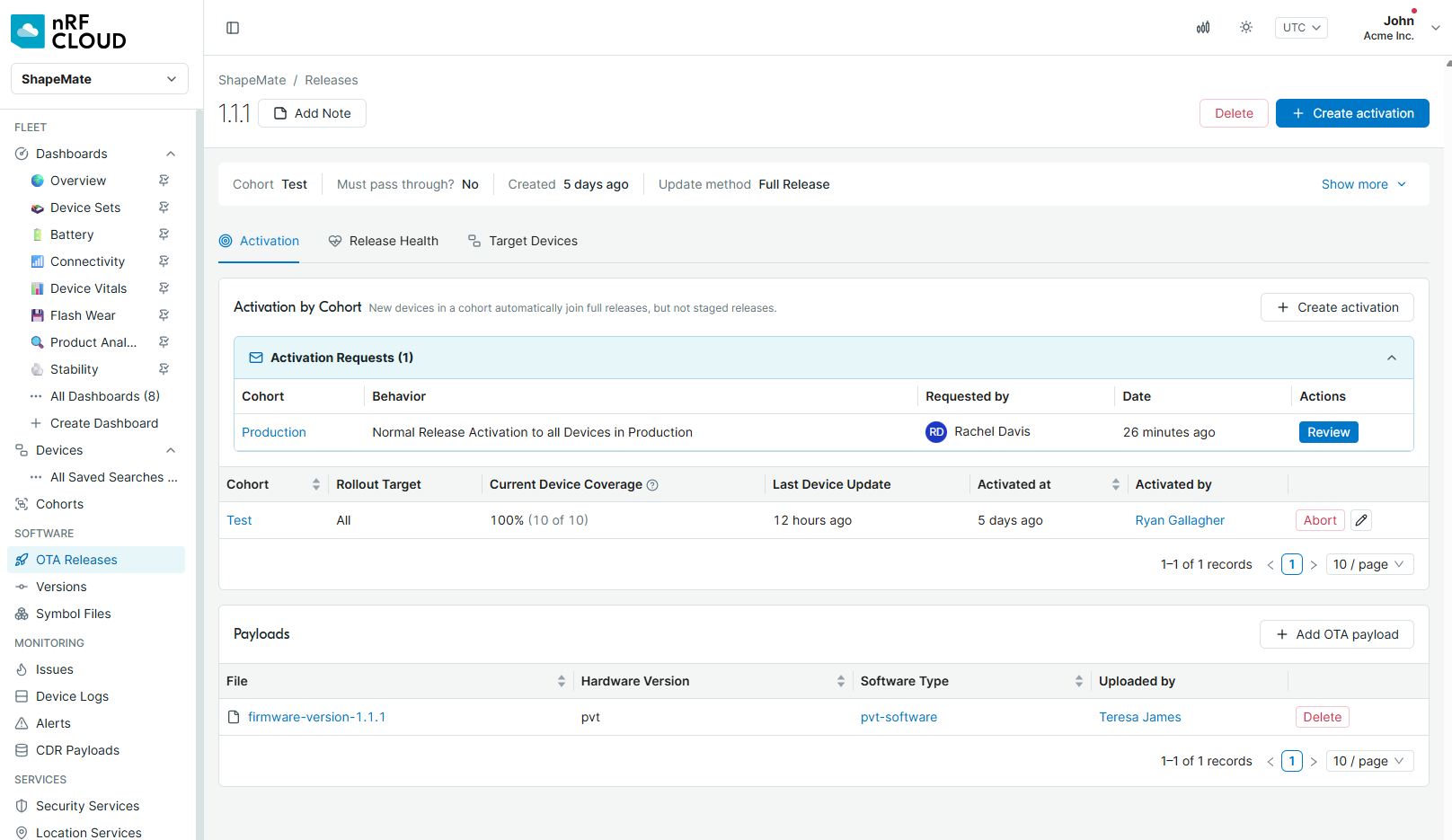
* **Activation** contains the Release's payloads and its Activation status for each Cohort. For each active Cohort, it shows the rollout target, current Device Coverage, and last device update.
* **Release Health** compares the Release with the preceding Software Version and shows its current Device Coverage.
* **Target Devices** lists devices that are and are not reporting the target Software Version.
The Release Health and Target Devices tabs share filters for Cohort, Hardware Version, and Last Seen. [Figure 2](#figure-7) shows the Activation tab.
#### [](#figure-7 "Direct link to figure-7")
[](/img/docs/platform/ota/release-activation.nrfcloud.png)
Figure 2: Release Activation tab showing payloads, Activation by Cohort, and pending activation requests.
#### Release Health[](#release-health "Direct link to Release Health")
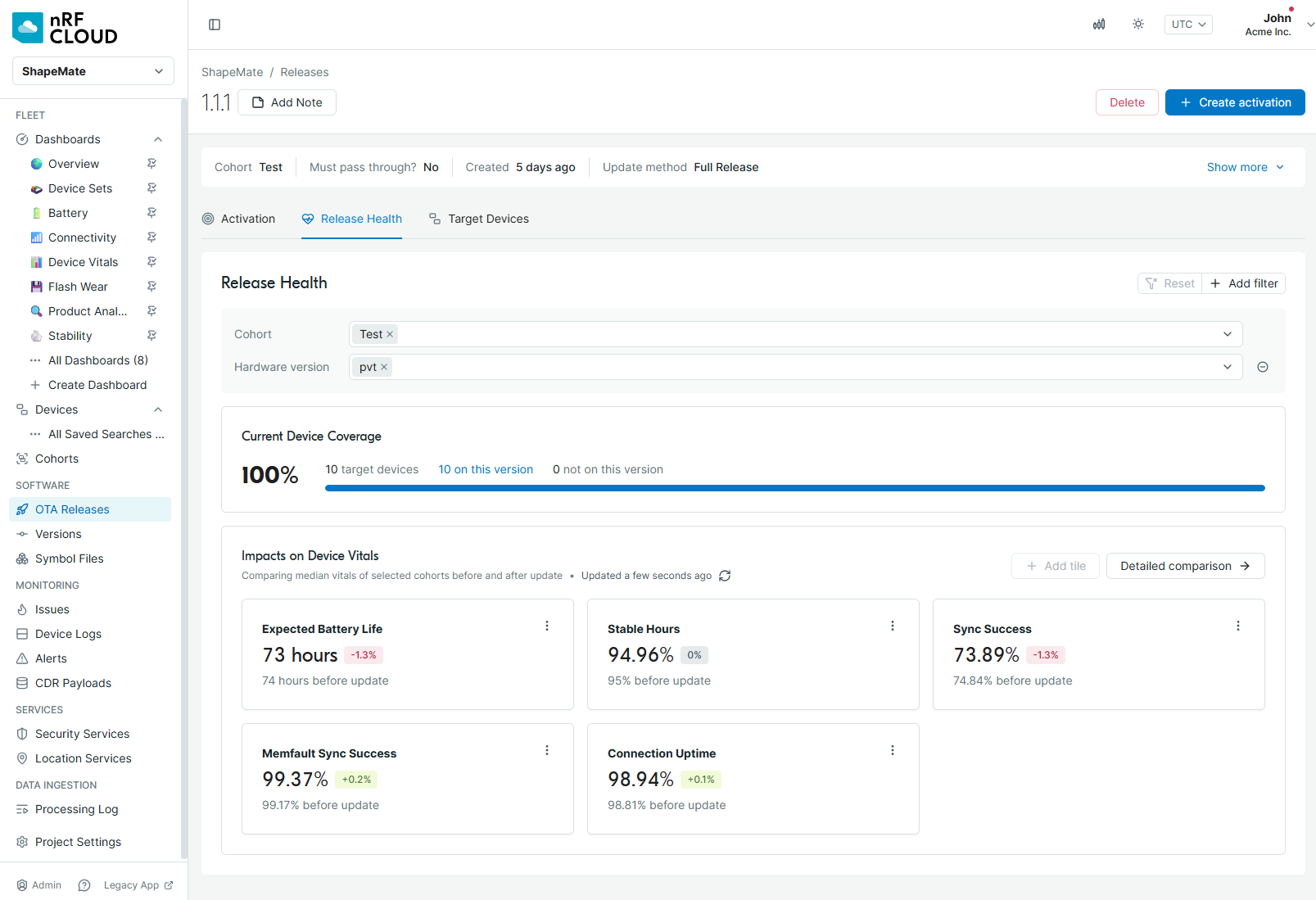
[Figure 3](#figure-8) shows the Release Health tab. The **Current Device Coverage** panel shows the share of devices within the selected filters that currently report the Release's Software Version. Select the number of devices on the version to open them in the Target Devices tab.
The **Impacts on Device Vitals** panel compares median Device Vitals, such as Expected Battery Life and Stable Hours, between the target Software Version and the immediately preceding Software Version of the same Software Type. It uses devices in the selected Cohorts that have data for both versions.
Each card shows the value on the target version, its percentage change, and the value before the update. A comparison may be unavailable when there is no prior Software Version or not enough matched device data.
Device Vital availability depends on the device platform and SDK configuration. See [Device Vitals](/docs/platform/memfault-core-metrics.md) for details.
#### [](#figure-8 "Direct link to figure-8")
[](/img/docs/platform/ota/release-health.nrfcloud.png)
Figure 3: Release Health tab comparing Device Vitals and showing current Device Coverage.
#### Target Devices[](#target-devices "Direct link to Target Devices")
The **Not on this version** and **On this version** tabs divide the target devices by their currently reported Software Version. The former shows each device's current version, while the latter shows when the device first reported the target version.
### Cohort Version Management[](#cohort-version-management "Direct link to Cohort Version Management")
To dive into your OTA configuration for a specific Cohort, you can access the **Cohort detail** view by first opening the **Cohorts** list view from the main menu, and then selecting the Cohort you're interested in.
Under the **Version Management** tab, you'll find the *version matrix*: a live view into the very next OTA update that each device in this Cohort will receive.
The version matrix consists of rows representing *current versions* that are currently reported by devices in the field. Its columns represent *future versions* devices of the Cohort will report (after having applied OTA releases). What follows is a tour of the different interface elements of the version matrix.
In each cell of the version matrix you'll find a count of devices. If, for example, a device count of 10K showed up on a cell in the intersection of row version 1.1 and the column 2.0, that would mean 10K devices are currently on version 1.1 and the immediate next step they're going to take is to download an OTA payload for a Release with version 2.0.
Conversely, if 5K devices were to show up on a cell in a row with version 1.0 and under the column for version 1.0, that would mean those 5K devices will stay on version 1.0.
All device counts on the version matrix are clickable, and will take you to a complete list of the devices represented under that count.
#### [](#figure-1 "Direct link to figure-1")
[](/img/docs/platform/ota/matrix-focus-full-releases.png)
Figure 4: Full Releases highlighted on the version matrix.
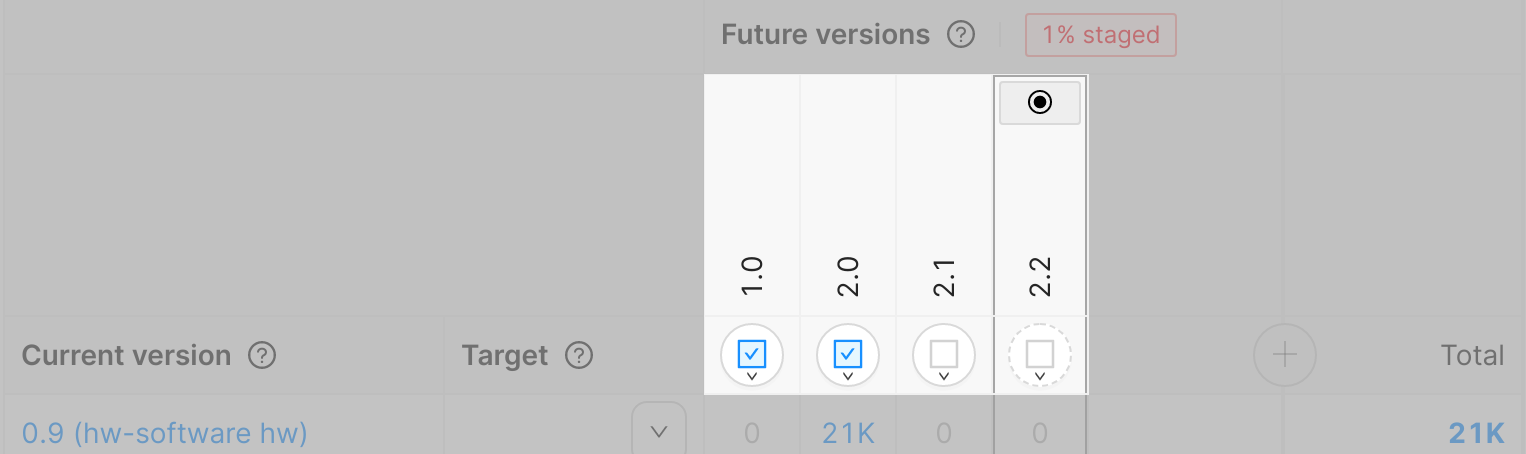
[Figure 4](#figure-1) highlights the area of the version matrix that shows future versions. In this example, three [Full Releases](#full-releases) exist (for versions 1.0, 2.0 and 1.1), but only Full Releases 1.0 and 2.0 are active. This is represented by the blue checkbox icon . The dotted line around the icon for the 2.2 version means that there is no Full Release with the same version.
The icon (which conventionally means "final state") on top of the 2.2 version shows us that 2.2 is a final target version for this Cohort. Eventually, all devices in this Cohort will end up on this version 2.2.
#### [](#figure-2 "Direct link to figure-2")
[](/img/docs/platform/ota/matrix-focus-delta-releases.png)
Figure 5: Delta Releases highlighted on the version matrix.
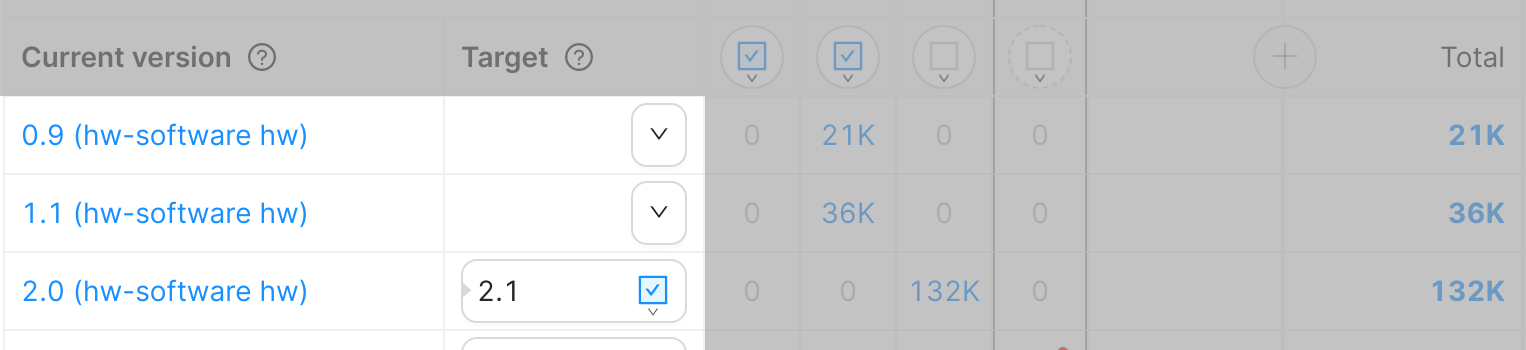
[Figure 5](#figure-2) highlights the area of the version matrix that represents [Delta Releases](#delta-releases). The *Current Version* column is where you may see the From Version of a Delta Release, and the *Target* column is where the Target Version of a Delta Release can be found. An empty drop-down icon indicates that there is no active Delta Release from the row's version. In the picture, only a Delta Release (marked with a ) from 2.0 to 2.1 is active .
#### [](#figure-3 "Direct link to figure-3")
[](/img/docs/platform/ota/matrix-full-and-delta.png)
Figure 6: Full Releases and Delta Releases on the version matrix.
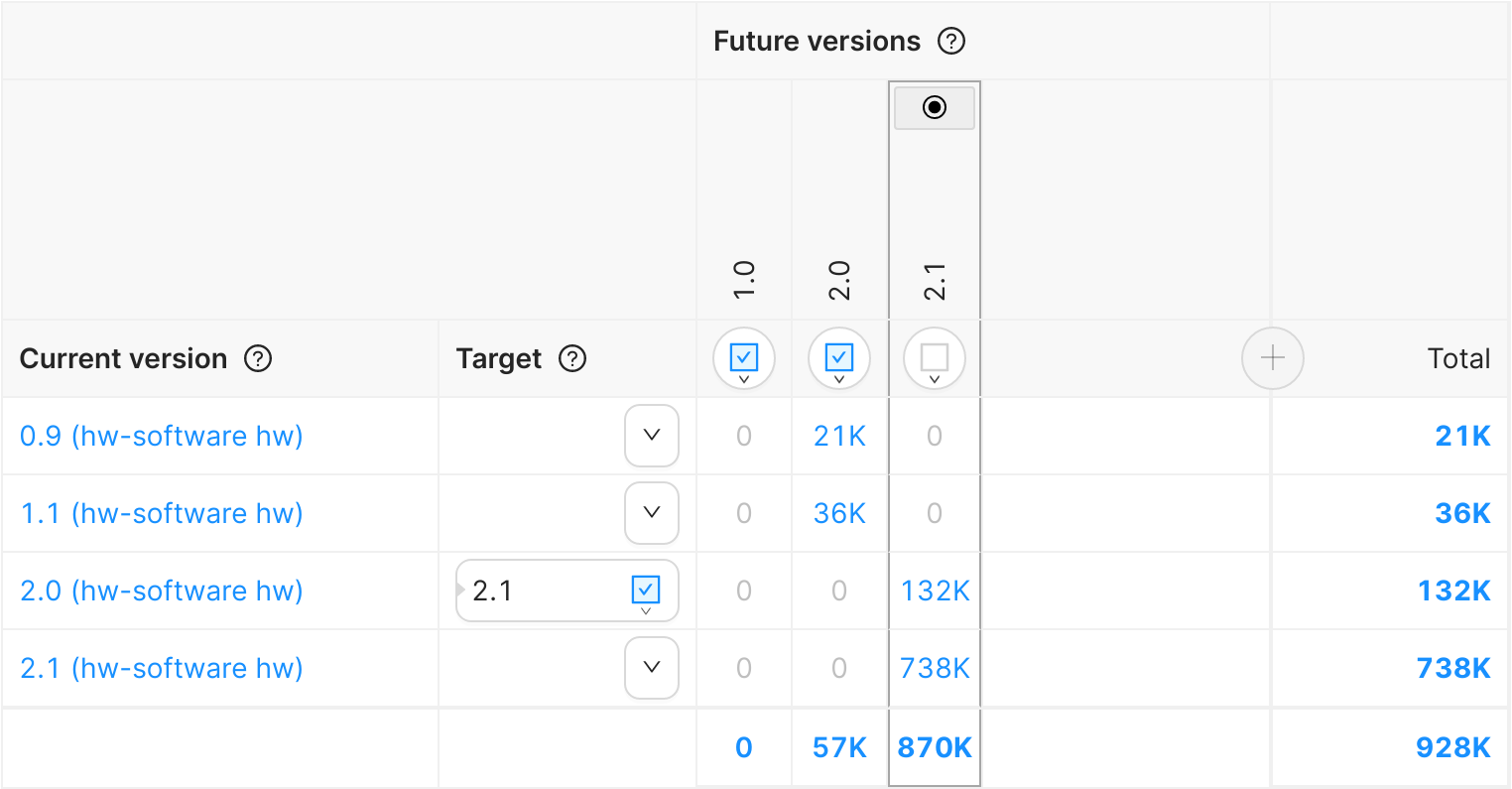
[Figure 6](#figure-3) shows the following scenario:
* Two active Full Releases exist (1.0 and 2.0) and there's one active Delta Release from 2.0 to 2.1.
* Full Release 1.0 is currently not applicable to any device.
* 21K devices currently on 0.9 are going to download a Full Release to 2.0.
* 36K devices currently on 1.1 are going to download a Full Release to 2.0.
* 132K devices currently on 2.0 are going to download a Delta Release from 2.0 to 2.1.
* 738K devices are already on 2.1. They will not receive any updates and will stay on version 2.1.
#### [](#figure-4 "Direct link to figure-4")
[](/img/docs/platform/ota/matrix-staged.png)
Figure 7: a staged rollout on the version matrix.
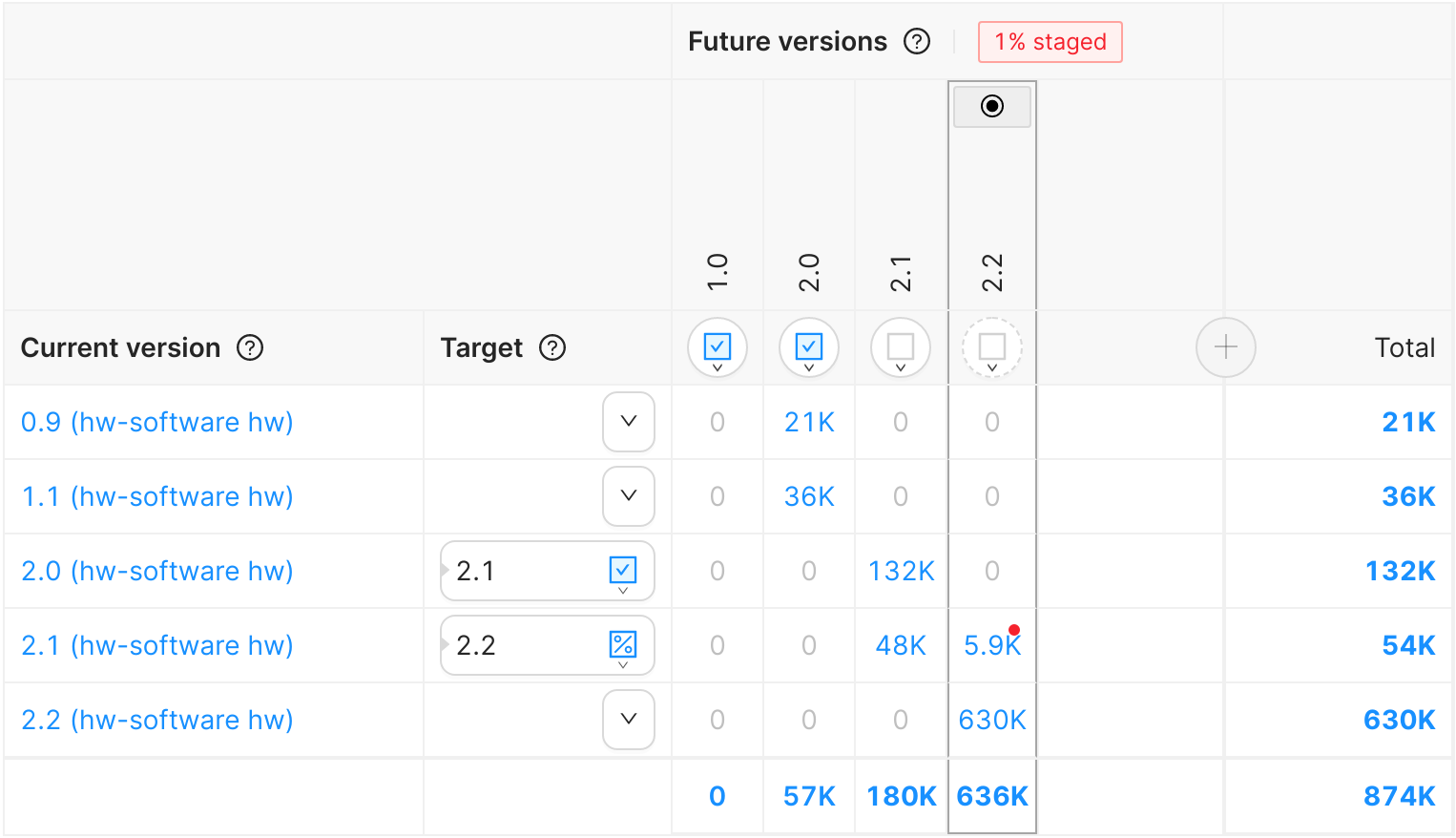
[Figure 7](#figure-4) shows the addition of a [staged rollout](#staged-rollout-of-a-release) of a Delta Release from version 2.1 to version 2.2. The percentage icon  indicates a staged rollout. In this scenario, only 5.9K devices out of a total of 54K that are on version 2.1 will download the payload from Delta Release from 2.1 to 2.2.
#### Managing OTA Updates[](#managing-ota-updates "Direct link to Managing OTA Updates")
The version matrix in the Cohort Version Management tab can also be used to manage your OTA Releases.
#### [](#figure-5 "Direct link to figure-5")
[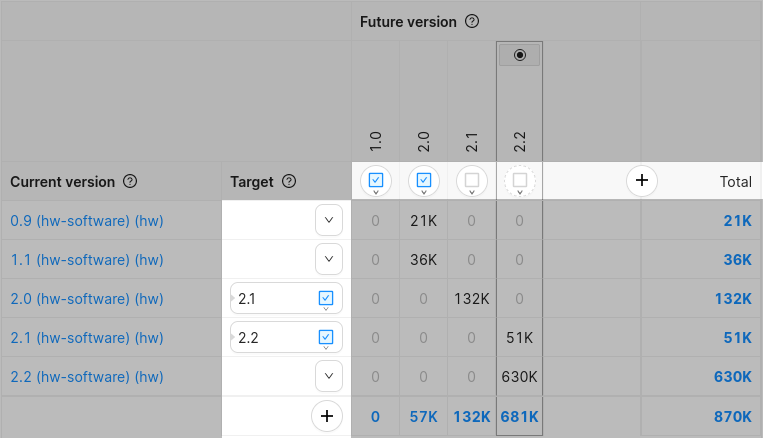](/img/docs/platform/ota/matrix-actions.png)
Figure 8: highlighted actions on the version matrix.
[Figure 8](#figure-5) highlights the location of buttons on the version matrix that allow for fine-grained control of OTA Releases in a specific Cohort.
You can manage Full Releases by using the controls arranged horizontally on the top side of the version matrix:
* Click on the plus icon on the right end to create a new Full Release.
* Use the highlighted buttons under each future version to create a Full Release targeting this version, or to create a Release Activation, abort it, or configure it.
Similarly, you can manage Delta Releases using the controls arranged vertically on the left side of the matrix:
* Click on the plus icon at the bottom to create a new Delta Release.
* Use the buttons next to each current version to create a Delta Release with this From Version, or to activate an existing Delta Release.
#### Protected Cohorts[](#protected-cohorts "Direct link to Protected Cohorts")
In the **Cohort detail** view, you can also find the **Protected Cohort** feature:
[](/img/docs/platform/ota/protected-cohort.png)
All Cohorts are Protected by default, which means only Project Managers can edit Release Activations for them (see [user roles](/docs/platform/access-control-teams-roles.md)).
[Organization Auth Tokens](/docs/platform/organization-auth-tokens.md) can be set to permit Release Activations for Protected Cohorts on creation:
[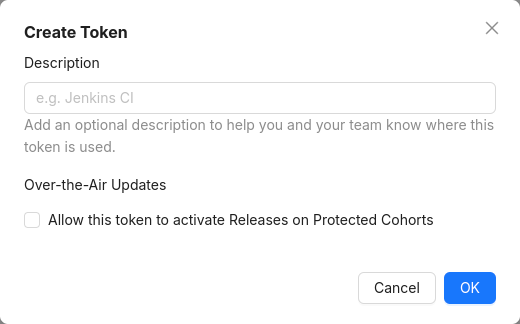](/img/docs/platform/ota/protected-cohort-oat.png)
### Cohorts View[](#cohorts-view "Direct link to Cohorts View")
In the **Cohorts** list view, accessible from the main menu on the left side of the application, some OTA-related information is available for each Cohort:
* The number of active Releases for the Cohort (under the *Releases* column).
* A software distribution widget (under the *Software Distribution* column).
The distribution of Software Versions in this Cohort is shown in different sections of the software distribution widget, with the Software Version representing the ongoing active Release highlighted and placed at the start.
### Release Activations[](#release-activations "Direct link to Release Activations")
Open a Release and select the **Activation** tab to review and manage its Activations. The **Activation by Cohort** section shows the Cohort, rollout target, Device Coverage, last device update, when it was activated, and the responsible user. Aborted Activations remain visible with an *aborted* label.
### Requiring Approvals for Release Activations[](#requiring-approvals-for-release-activations "Direct link to Requiring Approvals for Release Activations")
Cohorts can be configured to require an additional Team member with the right permissions to review Release Activations before they're executed. To configure this, open the [Cohort list page](https://app.memfault.com/organizations/-/projects/-/cohorts "Link to your Project on the Memfault Web App."), find and select the Cohort to open its details, and then open the **Settings** tab. Select a Team in the **Require Approvals for Release Activations** section.
If the Cohort is [protected](#protected-cohorts), then only Project Managers will be allowed to request Release Activations and approve them.
We recommend you [learn about Teams](/docs/platform/access-control-teams-roles.md) in order to make the best use of this feature.
When activating a Release targeting a Cohort that requires approval, a Release Activation Request will be created instead and another team needs to approve it in order to perform the Release Activation.
[](/img/docs/platform/ota/release-activation.nrfcloud.png)
A pending Release Activation Request in the **Activation by Cohort** section.
### Debugging Your Configuration[](#debugging-your-configuration "Direct link to Debugging Your Configuration")
If a device in your fleet is not downloading the OTA payload you anticipated from our description of [update behavior](#updating-behavior), you can use the device details view to review its Software Version history. Select **Explain** from the current Software Version menu to open **Explain Next Release**, which shows the result of calling the [Latest Release endpoint](/api/retrieve-latest-release-for-a-device.md) as that device.
[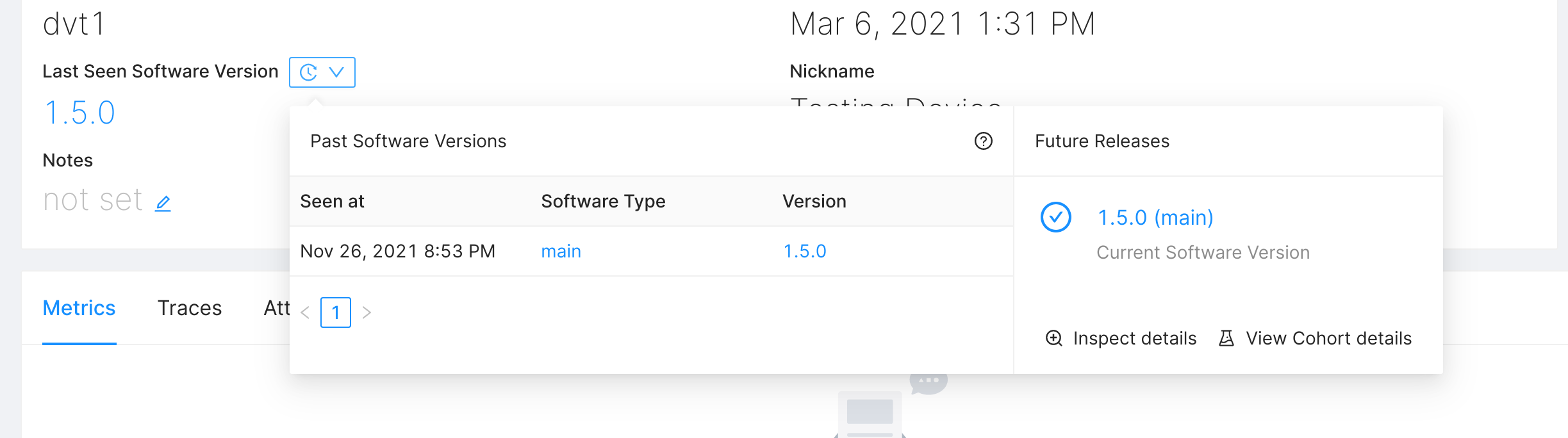](/img/docs/platform/ota/device-details-inspect.png)
A device's Software Version history and the **Explain** action for its next Release.
## Device OTA Endpoint[](#device-ota-endpoint "Direct link to Device OTA Endpoint")
nRF Cloud provides different types of Device OTA Endpoints for different device families and existing setups:
| Device Family | Typical OTA Update Endpoint |
| ---------------------------------------------------------------------------------- | --------------------------------------------------------------------------------------------------------------------------------------------------------------------------------------------------------------------------------- |
| [OTA Updates for MCU devices](/docs/mcu/releases-integration-guide.md) | The MCU SDK uses the [Latest Release Endpoint](/api/retrieve-latest-release-for-a-device.md). |
| [OTA Updates for Android (AOSP)](/docs/android/android-releases-integration-guide) | The Android SDK [Latest Release Endpoint](/api/retrieve-latest-release-for-a-device.md). |
| [OTA Updates for Embedded Linux](/docs/linux/ota) | SWUpdate users typically use our [hawkBit DDI Compatible API](/docs/linux/ota) (recommended!), or anyone can choose to make generic HTTP requests to our [Latest Release Endpoint](/api/retrieve-latest-release-for-a-device.md). |
## OTA & Device Version Specifiers[](#ota--device-version-specifiers "Direct link to OTA & Device Version Specifiers")
note
More information on nRF Cloud versioning can be found at [Software Versioning](/docs/platform/software-version-hardware-version.md).
Here are the versioning recommendations from nRF Cloud:
* Device `software_version` identifiers should use [SemVer 2.0](https://semver.org) versioning when possible
* Reported `software_version` should *exactly* match the OTA Release Version name
Note that SemVer 2.0 "build metadata" (`1.0.0+abcd`) is not supported by default, but needs to be opted into by [contacting support](https://mflt.io/contact-support).
For tying Source Control versions to OTA Releases, nRF Cloud recommends using the following strategies:
* **Recommended:** use a tag in your Source Control system that matches the OTA Release Version name (eg `git tag -a -m=1.0.0`)
* upload the Source Control commit hash as the OTA Release `revision` field (eg `git rev-parse HEAD`), either from the Web UI or the Memfault CLI.
[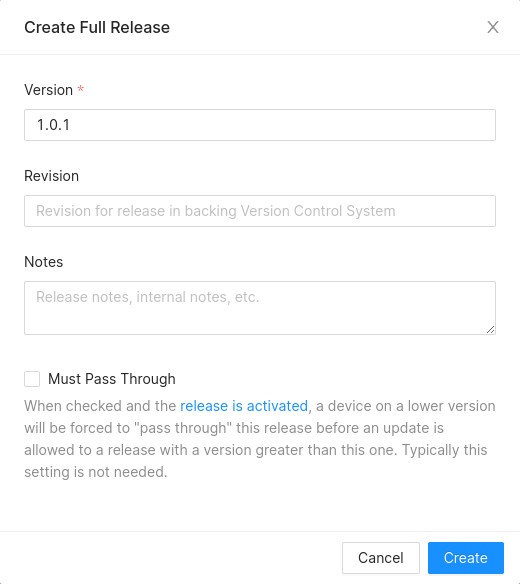](/img/docs/mcu/source-control-version-ota.png)