Location Services Quickstart
This guide explains how to authenticate requests to nRF Cloud Location Services using an organization auth token (OAT).
🔁Currently using a service or evaluation token?
Organization auth tokens replace the legacy nRF Cloud service tokens and evaluation tokens, which are deprecated. Follow the step-by-step migration guide to switch over.
Prerequisites
- An active nRF Cloud account with the ability to log in and view the application pages described below.
- Administrator-level access on the organization you want to use Location Services. See Access control: teams and roles.
If you need assistance verifying either of these prerequisites,
Step 1: Log in to nRF Cloud
Go to nRF Cloud and sign in with your nRF Cloud credentials.
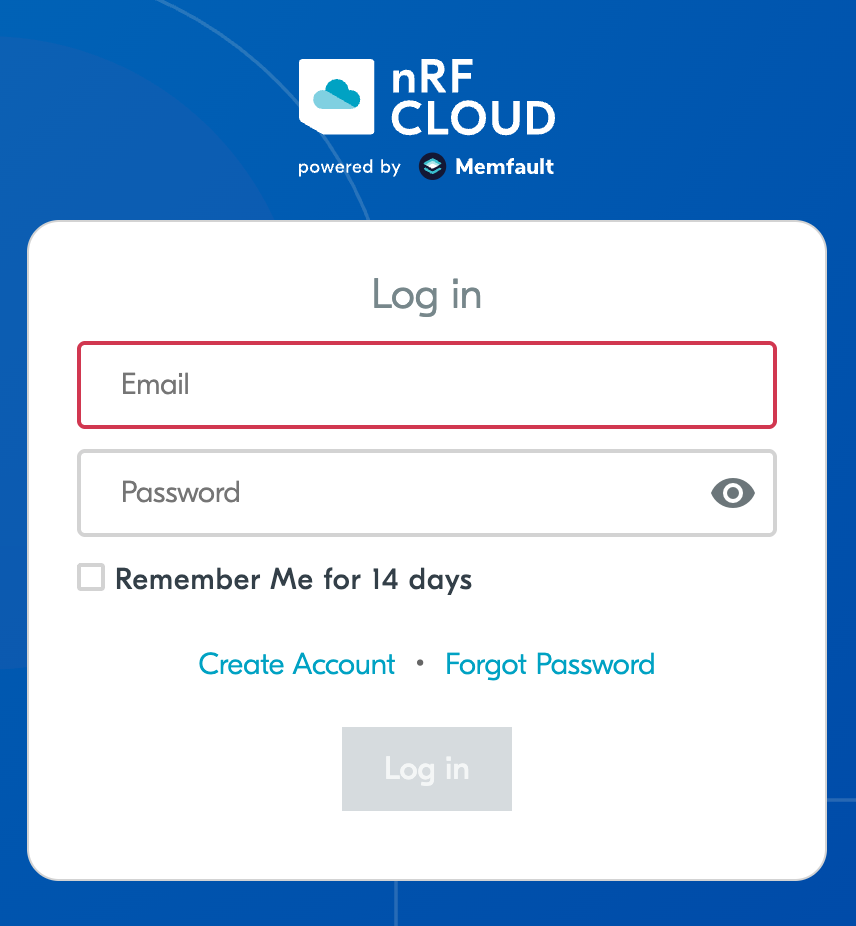
Once signed in, you land on the nRF Cloud dashboard.
Step 2: Open the nRF Cloud dashboard
This takes you to the nRF Cloud dashboard. If you are on our legacy page, please click the New Experience item on left sidebar of nRF Cloud legacy dashboard.
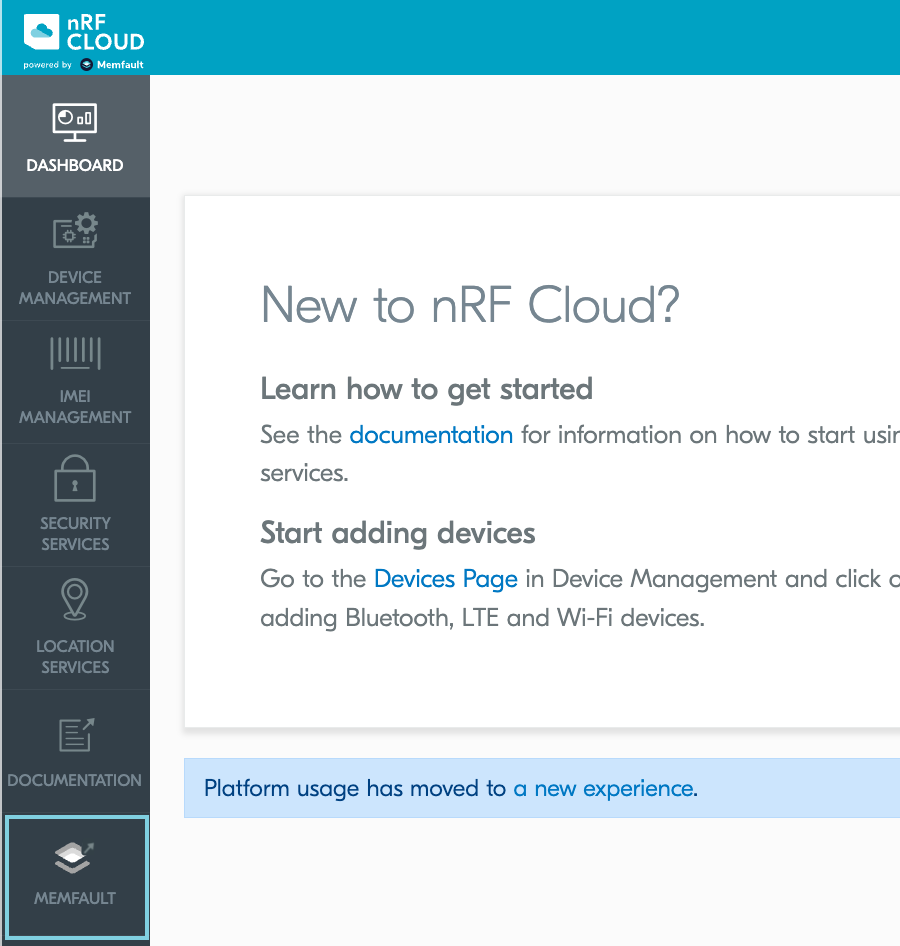
You briefly see a "Redirecting to New Experience" splash screen, then arrive at the nRF Cloud dashboard for the organization that corresponds to your nRF Cloud team.
If your nRF Cloud team was created before the nRF Cloud integration, you may see a one-time prompt to link or create an nRF Cloud organization. Accept the prompt to continue. The resulting nRF Cloud organization shares the name of your nRF Cloud team and contains a default project named nRF Project.
Step 3: Find your organization and project slugs
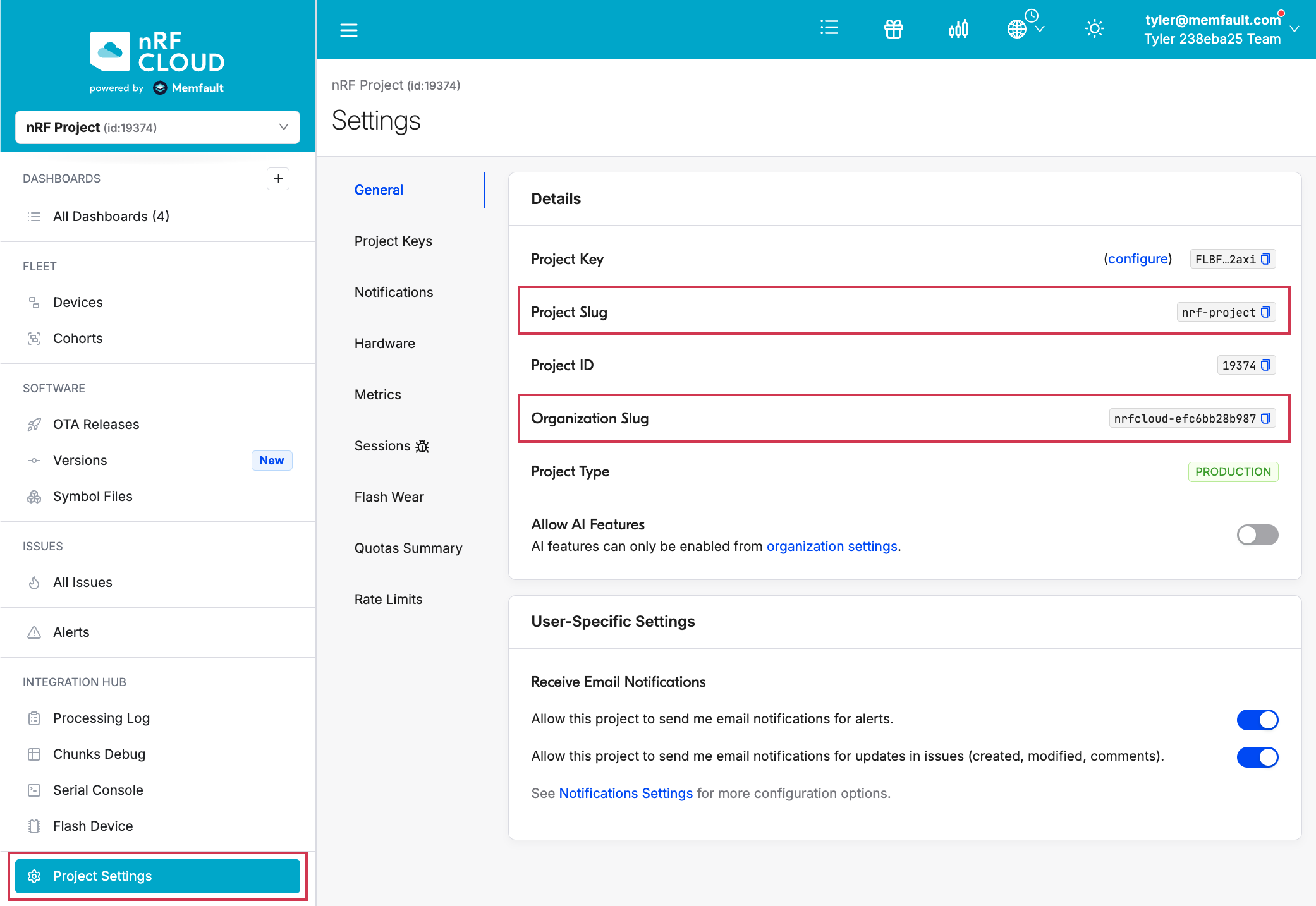
nRF Cloud structures your teams and devices in organizations and projects. You need both the organization slug and project slug to construct Location Services API URLs.
In the left sidebar, click Project Settings → General. Copy the Organization Slug and Project Slug values from the Details panel.
Step 4: Create an organization auth token
From the left sidebar, click Admin, open the Organization Auth Tokens tab, and click Create Token.
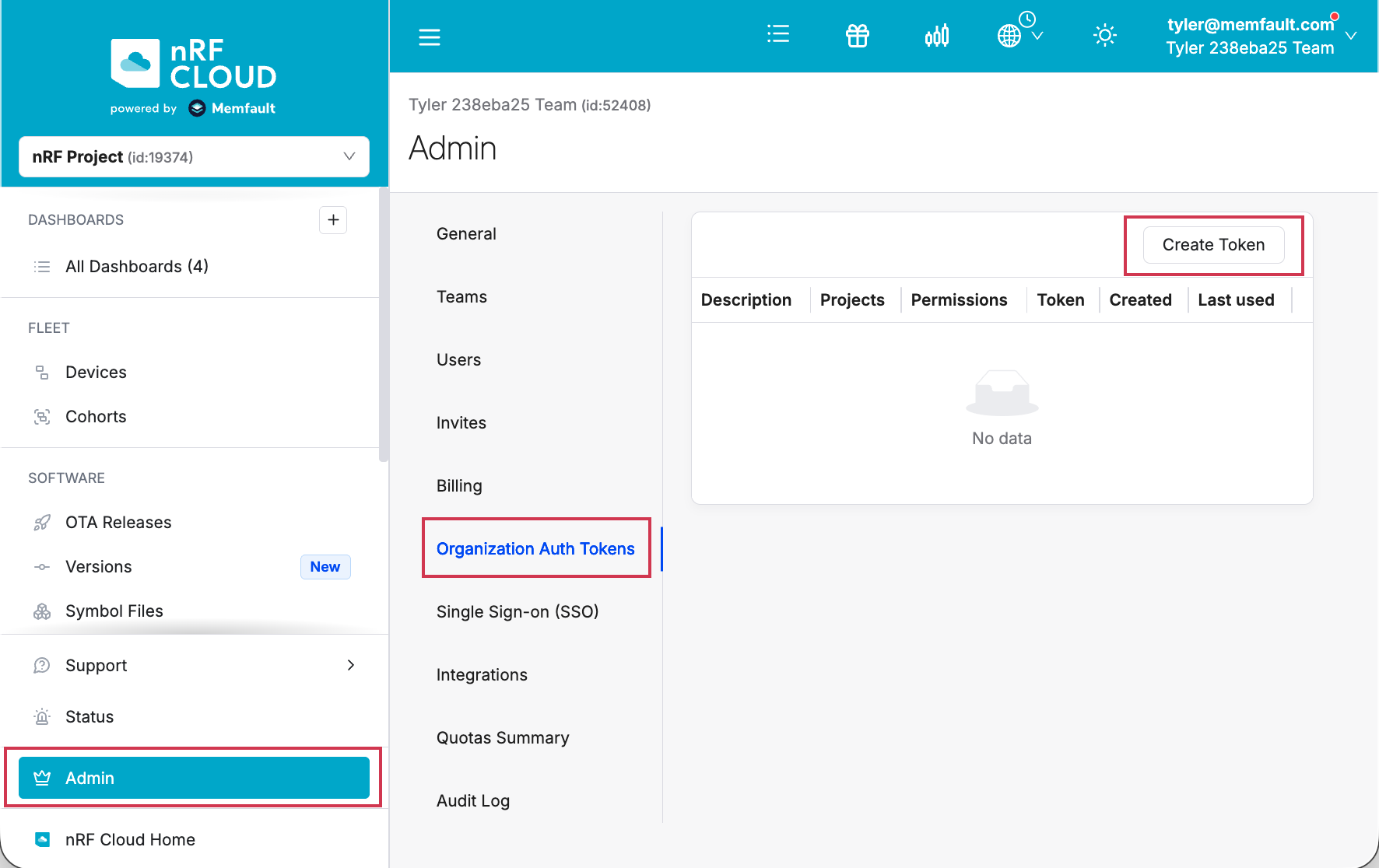
Enter a description (for example, Location Services) and click Create.
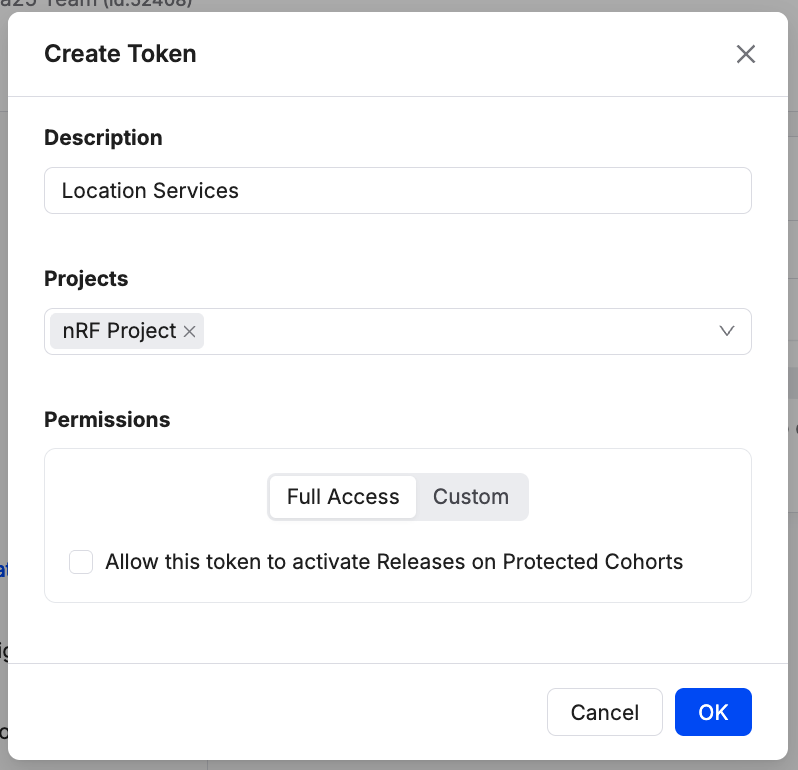
Copy the token immediately and store it somewhere secure. nRF Cloud does not display the secret value again.
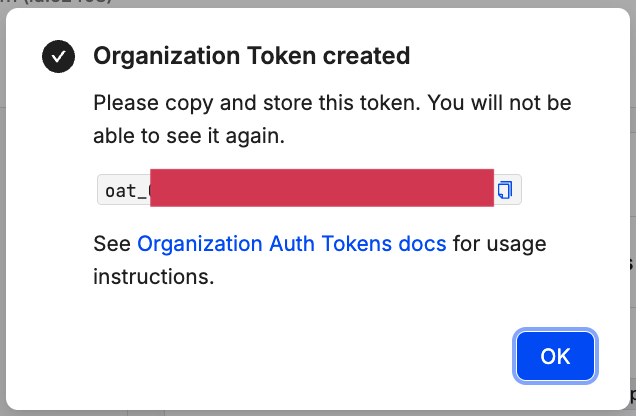
For more details on OATs, see Organization Auth Tokens.
Do not commit OATs to source control or paste them into chat. They grant the same permissions as an organization admin has via the API.
Step 5: Make a Location Services request
Use the OAT in the Authorization header when calling nRF Cloud Location
Services REST endpoints. The token is sent as a Bearer token.
The base URL for Location Services endpoints is:
https://api.nrfcloud.com/v1/organizations/<YOUR_ORG>/projects/<YOUR_PROJECT>/location
Replace <YOUR_ORG> with your Organization Slug (from Step 3) and
<YOUR_PROJECT> with your Project Slug.
Example: Wi-Fi location
For example, for an organization with slug acme-inc, project slug shapemate,
and the OAT stored in the environment variable $NRFCLOUD_OAT, the request is:
curl -v -X POST \
  https://api.nrfcloud.com/v1/organizations/acme-inc/projects/shapemate/location/wifi \
  -H "Authorization: Bearer $NRFCLOUD_OAT" \
  -H "Content-Type: application/json" \
  -d '{
    "accessPoints": [
      {
        "macAddress": "30:86:2d:c4:29:d0",
        "signalStrength": -45
      },
      {
        "macAddress": "3c:37:86:5d:75:d4",
        "signalStrength": -45
      }
    ]
  }'
A 200 OK response with a JSON body containing lat/lon confirms that your
OAT and slugs are working.
Next steps
- If you have existing devices or services using a service token or evaluation token, follow the migration guide to switch them over.
- See the nRF Cloud Location Services API reference for the full list of endpoints (Wi-Fi, cellular, A-GNSS, P-GPS).